
HP Compaq Presario CQ70s 17-inch screen and full-sized keyboard puts it in the desktop-replacement category, the relatively slow processor and integrated graphics mean most people will still need a fully fledged desktop for gaming, video editing and the like. If you’re after a general-purpose laptop and won’t be running games or processor-intensive applications, the HP Compaq Presario CQ70-116 delivers the goods at an outstandingly low price.
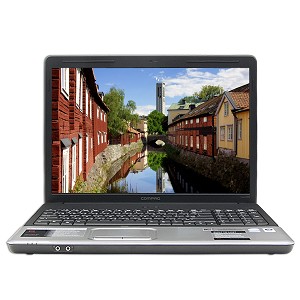
Compaq Presario CQ70 Laptop Battery Status in Windows 7: “Plugged in, not charging”
If you are running Windows 7 operating system and are getting the “Plugged in, not charging” status on your Compaq presario cq70 notebook battery, please following the steps below to troubleshoot this issue:
- Unplug the Compaq Presario CQ70 Laptop AC adapter.
- Shutdown laptop
- Remove the Presario CQ70 battery
- Plug in Laptop Power Adapter
- Start Windows7
- Remove Microsoft ACPI-Compliant Control Method Battery:
- Go to START > Devices and Printers > Admin PC > Hardware
- Select Microsoft ACPI-Compliant Control Method Battery
- Click Properties > Change Settings > Driver > Uninstall > OK > Uninstall
- Shutdown HP Presario CQ70 Notebook
- Unplug Laptop Charger
- Replace Compaq presario cq40 laptop battery
- Plug in Laptop AC Adapter
- Turn on laptop, allow Windows7 to boot
- Status should now say, “Presario CQ70 Laptop Battery Plugged in and charging”
